홈카메라 고장 증상 해결 및 관리 팁 홈카메라는 보안과 모니터링을 위해 필수적인 장비입니다. 하지만 가끔씩 고장 증상이 발생할 수 있습니다. 이번 가이드는 2026년 기준 최신 OS와 하드웨어 환경을 고려하여 홈카메라의 고장 증상과 해결 방법을 정리했습니다. 1. 문제 원인 및 증상 요약 홈카메라의 고장 증상은 다양합니다. 주요 증상과 그 원인은 다음과 같습니다. 영상 끊김 또는 정지: 네트워크 불안정, 카메라의 메모리 부족, 또는 하드웨어 결함이 원인일 수 있습니다. 화질 저하: 렌즈 오염, 해상도 설정 문제, 또는 카메라의 센서 문제 때문일 수 있습니다. 연결 실패: Wi-Fi 신호 약화, 설정 오류, 또는 펌웨어 업데이트 필요성이 원인입니다. 전원 문제: 전원 어댑터 불량, 케이블 손상, 또는 내부 배터리 문제로 인해 발생할 수 있습니다. 2. 단계별 해결 방법 (Step-by-Step 실전 팁) 2.1 영상 끊김 또는 정지 네트워크 상태 확인: 라우터와 카메라 간의 거리를 확인하고, Wi-Fi 신호가 강한지 확인합니다. 다른 기기에서 인터넷 속도를 테스트하여 네트워크 문제가 아닌지 확인합니다. 메모리 확인: 카메라의 저장 용량을 확인하고, 필요 없는 파일을 삭제하여 여유 공간을 확보합니다. 재부팅: 카메라와 라우터를 모두 재부팅하여 임시 문제를 해결합니다. ...
How to Fix & Optimize Smart Home Security Camera (2026 Practical Guide)
Smart Home Security Camera Troubleshooting and Optimization Guide (2026) Quick Summary This guide provides a step-by-step troubleshooting and optimization process for smart home security cameras. It addresses common issues such as connectivity problems, image quality, and storage management, ensuring your camera operates efficiently and effectively. Step-by-Step Actionable Walkthrough Step 1: Check Power Supply Verify Power Source: Ensure the camera is plugged into a working outlet or that the battery is charged. Inspect Cables: Look for any damage to power cables or connectors. Reset Power: Unplug the camera, wait 10 seconds, and plug it back in. Step 2: Confirm Network Connectivity Check Wi-Fi Signal: Ensure the camera is within range of your Wi-Fi router. Test Internet Connection: Use a smartphone or laptop to check if the internet is working. Restart Router: If the internet is down, restart your router by unplugging it for 10 seconds and plugging it back in. Reconnect Camera: Access the camera’s app and reconnect it to the Wi-Fi network. Step 3: Update Firmware Open Camera App: Launch the app associated with your smart camera. Navigate to Settings: Go to the settings menu and look for firmware updates. Install Updates: If an update is available, follow the prompts to install it. Step 4: Adjust Camera Settings Resolution Settings: Check the camera’s video resolution settings. Higher resolutions provide better quality but may require more bandwidth. Motion Detection: Ensure motion detection is enabled and configured correctly. Night Vision: If applicable, verify that night vision settings are turned on for low-light conditions. Step 5: Check Storage Options Local Storage: If using an SD card, ensure it is properly inserted and has sufficient space. Cloud Storage: Verify your cloud storage subscription is active and that there is enough space for recordings. Delete Unnecessary Footage: Clear out old recordings to free up space. Step 6: Test Camera Functionality Live View: Access the live feed through the app to confirm the camera is operational. Record a Test Clip: Record a short video to ensure the camera captures footage correctly. Check Alerts: Trigger motion detection and confirm that alerts are received on your device. Alternative Tips Positioning: Ensure the camera is mounted at an optimal height and angle for maximum coverage. Environmental Factors: Avoid placing the camera in direct sunlight or areas with extreme temperatures to prevent overheating or glare. Network Extenders: If Wi-Fi signal strength is weak, consider using a Wi-Fi extender to improve connectivity. Regular Maintenance: Periodically clean the camera lens and housing to ensure clear video quality. User Manual: Refer to the manufacturer’s user manual for specific troubleshooting steps and advanced settings. By following this guide, you can effectively troubleshoot and optimize your smart home security camera for reliable performance in 2026. ...
[광고] 2026 가성비 로봇청소기 추천 Top 5 비교 및 실사용 가이드
이 포스팅은 쿠팡 파트너스 활동의 일환으로, 이에 따른 일정액의 수수료를 제공받습니다. 로봇청소기 선택, 고민 없이 똑똑하게 하기 2026년 현재, 로봇청소기를 구매할 때 많은 소비자들이 성능, 가격, 그리고 사용 편의성을 놓고 고민합니다. 여러 제품 중에서 내가 원하는 기능을 갖춘 아이템을 고르기 위해선 어떤 점을 중점적으로 살펴봐야 하는지 정리해드리겠습니다. 1. 홈리아 로봇청소기 스마트 물걸레 청소 소재: 화이트 색상으로 깔끔한 디자인, 내구성이 뛰어난 ABS 플라스틱을 사용. 연결성: Wi-Fi 지원으로 스마트폰 앱과 연동 가능, 사용하기 편리함. 내구성: 강력한 흡입력과 자동충전 기능으로 지속적인 사용 가능. 가성비: 적절한 가격 대비 뛰어난 성능을 제공하지만, 초기 설치가 다소 복잡할 수 있음. 장점: 강력한 청소 성능과 스마트 기능이 조화를 이루어 편리하게 사용할 수 있습니다. 단점: 다소 높은 초기 설치 난이도. ...

Top 5 Best Robot Vacuum Cleaner for Desk Setup (2026 Buyer's Guide)
Your Ultimate Guide to Choosing the Best Pool Cleaning Robot in 2026 Keeping your pool clean and inviting is crucial for maintenance and enjoyment. In 2026, a variety of advanced pool cleaning robots are available that make this task easier than ever. Here’s a guide focused solely on the hardware specifications of five top-rated pool cleaning robots to help you make an informed decision. 1. Swimming Pool Cleaning Robot Electric Automatic Pool Vacuum Cleaning Robot Build Quality: Constructed with durable ABS plastic, designed for longevity. Connection: Features wireless operation leveraging advanced sensors for navigation. Battery Life: Offers up to 90 minutes of autonomous cleaning. Switches/Sensors: Equipped with anti-collision and anti-pull sensors, ensuring efficient navigation. Ergonomics: Lightweight and compact design makes it easy to carry and store. 2. Cordless Robotic Pool Cleaner Build Quality: Robust plastic housing, capable of withstanding harsh pool chemicals. Connection: Operates without any wired connections, providing complete freedom of movement. Battery Life: Approximately 180 minutes runtime on a single charge, ideal for larger pools. Switches/Sensors: Includes self-parking technology, which returns the unit to the charging base when the battery is low. Ergonomics: Designed for easy handling and maneuverability, even on uneven surfaces. 3. Smart Automatic High Quality Eco-Friendly Plastic Cleaning Robot Build Quality: Made from eco-friendly high-quality plastic, ensuring durability and safety. Connection: Wireless functionality for ease of use, with intuitive navigation algorithms. Battery Life: Efficient battery that lasts up to 120 minutes per cycle. Switches/Sensors: Incorporates advanced sensors for wall detection and optimal cleaning path management. Ergonomics: User-friendly design makes setup and operation straightforward. 4. Automatic Swimming Pool Robot Vacuum Cleaner Build Quality: Sturdy construction with reinforced materials for heavy-duty cleaning. Connection: Operates on a purely wireless basis, eliminating cord tangles. Battery Life: Powered for 100 minutes of operation, compatible with various pool types. Switches/Sensors: Features automated wall climbing capabilities and superior suction technology. Ergonomics: Streamlined design promotes better maneuverability and storage. 5. Automatic Robotic Pool Cleaner Build Quality: Built with long-lasting components, including a corrosion-resistant shell. Connection: Fully wireless for unrestricted movement across various pool surfaces. Battery Life: Offers 90 minutes of runtime, allowing effective cleaning within this period. Switches/Sensors: Comes equipped with three motors for enhanced suction and wall climbing efficiency. Ergonomics: Compact and lightweight, designed for easy transportation and setup. Conclusion When choosing a pool cleaning robot, it’s essential to consider the hardware specifications that align with your pool’s unique requirements. Each of the listed products presents distinct advantages in build quality, battery life, and functionality. Assess your needs carefully to find the robot vacuum that will provide the best cleaning performance for your pool in 2026. ...
공기청정기 고장 증상 해결 및 관리 팁 자가 해결 및 관리 가이드 (2026)
공기청정기 고장 증상 해결 및 관리 팁 공기청정기는 현대 생활에서 필수적인 가전제품으로, 실내 공기를 깨끗하게 유지하는 데 중요한 역할을 합니다. 하지만 사용 중 고장 증상이 발생할 수 있으며, 이를 적절히 해결하고 관리하는 방법에 대해 알아보겠습니다. 1. 문제 원인 및 증상 요약 공기청정기의 고장 증상은 다양합니다. 다음은 일반적으로 발생하는 문제와 그 원인입니다. 작동 불능: 전원이 들어오지 않거나 작동하지 않는 경우. 소음 발생: 평소보다 큰 소음이 발생하는 경우. 필터 경고등 점등: 필터 교체 시기가 도래했음을 알리는 경고등이 켜지는 경우. 공기 질 개선 미비: 공기청정기가 작동해도 공기 질이 개선되지 않는 경우. 이러한 증상들은 필터의 오염, 전원 문제, 내부 부품의 고장 등 다양한 원인으로 발생할 수 있습니다. ...
How to Fix & Optimize Air Purifier (2026 Practical Guide)
Air Purifier Troubleshooting and Optimization Guide (2026) Quick Summary Air purifiers are essential for maintaining indoor air quality. However, they may encounter issues that affect performance. This guide provides a step-by-step troubleshooting process and optimization tips to ensure your air purifier operates efficiently. Step-by-Step Actionable Walkthrough Step 1: Check Power Supply Verify Power Connection: Ensure the air purifier is plugged into a working outlet. Test the outlet with another device. Inspect Power Cord: Look for any visible damage or fraying on the power cord. Replace if necessary. Check Circuit Breaker: If the unit doesn’t power on, check the circuit breaker for any tripped switches. Step 2: Examine Filter Status Filter Indicator Light: If your model has a filter indicator, check if it’s illuminated. Replace the filter if needed. Physical Inspection: Open the unit and visually inspect the filter for dirt and debris. If it appears clogged, replace or clean it according to the manufacturer’s instructions. Filter Type: Ensure you are using the correct type of filter recommended for your model. Step 3: Assess Airflow Clear Surroundings: Ensure there are no obstructions around the air intake and exhaust vents. Maintain at least 12 inches of clearance. Check for Dust Buildup: Clean the exterior and vents of the air purifier with a soft cloth to remove dust that may impede airflow. Step 4: Monitor Noise Levels Identify Unusual Noises: Listen for any rattling or grinding sounds. This may indicate a loose component or a failing motor. Fan Speed Settings: Ensure the fan speed is set appropriately. High settings may produce more noise but are necessary for effective purification. Step 5: Evaluate Performance Air Quality Sensor: If equipped, check the air quality sensor readings. If they seem inaccurate, recalibrate or reset the unit as per the manual. Run Time: Ensure the air purifier runs for an adequate amount of time daily (typically 24/7 for optimal performance). Location: Place the air purifier in a central location for maximum air circulation, avoiding corners or enclosed spaces. Step 6: Reset the Unit Power Cycle: Turn off the air purifier, unplug it, wait for 30 seconds, then plug it back in and turn it on. Factory Reset: If issues persist, refer to the user manual for instructions on performing a factory reset. Alternative Tips Regular Maintenance: Schedule regular maintenance checks every 3-6 months, including filter replacements and cleaning. Upgrade Filters: Consider using HEPA filters for enhanced air purification, especially if you have allergies or pets. Smart Features: Utilize any smart features available, such as app connectivity or scheduling, to optimize usage and monitor air quality remotely. Seasonal Adjustments: Adjust settings based on seasonal changes, such as increasing fan speed during pollen season or winter months when indoor air can be drier. By following this guide, you can troubleshoot and optimize your air purifier for better performance and longevity. ...
[광고] 2026 가성비 무선카플레이 추천 Top 5 비교 및 실사용 가이드
이 포스팅은 쿠팡 파트너스 활동의 일환으로, 이에 따른 일정액의 수수료를 제공받습니다. 차량에서 실시간 인포테인먼트를 위한 완벽한 무선 어댑터 선택하기 차량에서 안전하게 인포테인먼트를 즐기고 싶지만 다양한 선택지에 혼란스러우신가요? 무선 애플 카플레이와 안드로이드 오토의 다양한 옵션 중에서 자신의 차량과 사용 용도에 맞는 최적의 어댑터를 선택하는 것은 생각보다 쉽지 않습니다. 여기, 2026년 기준 최신 제품들로 다양한 요구를 충족할 수 있는 5개의 자동차 무선 미러링 어댑터를 소개합니다. 1. 오토캐스트 미니 피코 무선 애플 카플레이 안드로이드 오토 2 in 1 자동차 미러링 어댑터 (CA525-T2) 소재 및 디자인: 소형 경량 디자인으로 차량 내에서의 공간 활용성이 뛰어납니다. 연결성: 무선으로 애플 카플레이와 안드로이드 오토를 모두 지원하여, 드라이브 중에도 다양한 기능을 쉽게 이용할 수 있습니다. 내구성 및 가성비: 내구성이 우수하나 가격이 중간 수준으로, 여러 기능을 지원하는 점에서 가성비가 뛰어납니다. 장점: 스마트 버튼 지원으로 편리한 조작이 가능합니다. 단점: 설치가 다소 복잡할 수 있다는 점이 아쉽습니다. 2. 카온스 카플레이 모니터 네비게이션 무선 안드로이드 오토 올인원 (E30A1) 소재 및 디자인: 고급스러운 미니멀 디자인이 돋보이며, 고화질 디스플레이를 통해 네비게이션 사용에 최적화되어 있습니다. 연결성: 무선 카플레이 및 안드로이드 오토 지원, 빠른 연결 속도를 보장합니다. 내구성 및 가성비: 가격은 다소 높은 편이나 그만큼의 품질을 제공합니다. 내구성이 좋고, 여러 기능이 통합되어 있어 경제적입니다. 장점: 직관적인 사용자 인터페이스와 함께 뛰어난 시각적 경험을 제공합니다. 단점: 고가의 가격대가 진입장벽이 될 수 있습니다. 3. 오토캐스트 Play2Video Pro 무선 안드로이드 오토 앤 애플 카플레이 올인원 어댑터 소재 및 디자인: 스탠다드한 디자인에 비해 유튜브와 넷플릭스 사용이 가능하다는 혁신적인 특징이 있습니다. 연결성: 안정적인 무선 연결을 제공하며, 스트리밍이 매끄럽습니다. 내구성 및 가성비: 다소 높은 가격대지만, 스트리밍 기능이 탑재되어 가성비가 좋은 편입니다. 장점: 여가 시간을 활용할 수 있는 기능이 매력적입니다. 단점: 추가 기능이 많아 복잡함을 느낄 수 있습니다. 4. Aesero 안드로이드오토 초미니 무선 카플레이 2in1 어댑터 소재 및 디자인: 작고 가벼운 디자인으로 차량에 거의 보이지 않게 장착이 가능합니다. 연결성: 사용자 친화적인 플러그 앤 플레이 방식으로 손쉬운 설치가 가능합니다. 내구성 및 가성비: 저렴한 가격에 충분한 기능을 제공해 가성비가 높습니다. 장점: 사용이 간편하고, 모든 차량 모델과 호환됩니다. 단점: 기능이 제한적이어서 고급 기능을 원하는 분들께는 아쉬울 수 있습니다. 5. ANNIBER 정품 초미니 무선 애플 카플레이 안드로이드 오토 2in1 스마트 차량용 무선 카플레이 미러링 동글 소재 및 디자인: 소형 및 경량 디자인으로 한정된 공간에서도 활용이 용이합니다. 연결성: 안정적인 연결성을 제공하여 드라이브 중의 편리함을 극대화합니다. 내구성 및 가성비: 3년 무상 품질 보증으로 내구성을 보장하는 동시에 가격도 합리적입니다. 장점: 뛰어난 애플 카플레이와 안드로이드 오토 지원이 장점입니다. 단점: 기능은 비교적 기본적이며, 고급스러운 디자인은 아닙니다. 결론 마지막으로 차량 용도에 따라 추천드립니다. 사무용으로는 카온스 E30A1이, 가성비를 중요시하는 분들께는 Aesero를, 입문자용으로는 ANNIBER 동글을 추천합니다. 각 제품의 특징을 잘 파악하시고, 자신에게 맞는 제품을 선택하시기 바랍니다. 차량의 인포테인먼트를 한층 높여보세요! ...
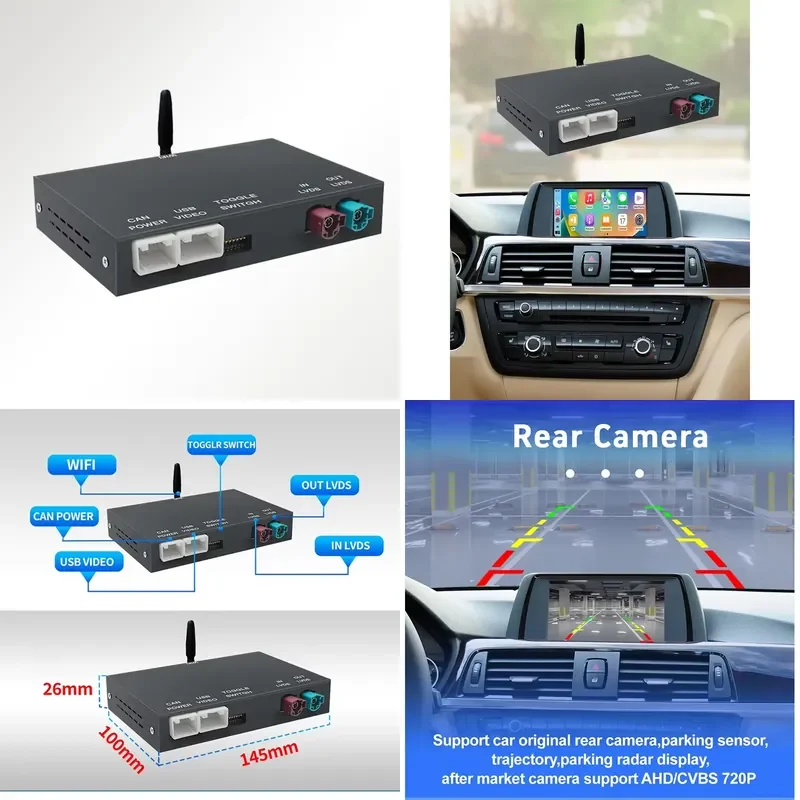
Top 5 Best Wireless CarPlay Adapter for Desk Setup (2026 Buyer's Guide)
The Ultimate Buying Guide for Wireless CarPlay and Android Auto Adapters in 2026 In an era where seamless connectivity in vehicles is paramount, finding the right wireless CarPlay and Android Auto adapters is essential for enhancing your driving experience. Below, we present a detailed analysis of five top-tier products, focusing on their build quality, connectivity options, and ergonomic features. 1. Wireless CarPlay Module Android Auto Adapter Decoder for NBT CIC EVO MGU System Hardware Specifications: Build Quality: Designed specifically for BMW systems (NBT/CIC/EVO/MGU), ensuring compatibility and longevity. Connection: Utilizes Bluetooth and 2.4G technology for stable wireless connectivity. Ergonomics: Compact design fits neatly within the vehicle’s existing architecture, minimizing space usage. 2. Ottocast Cabin Care Wireless CarPlay Adapter with Baby Car Camera Hardware Specifications: Build Quality: Robust construction for both the adapter and the camera; intended for a wide array of vehicles. Connection: Features Bluetooth for audio streaming and Wi-Fi connectivity for video transmission. Camera Specifications: 1080P HD resolution with a 150° wide-angle lens and night vision capability for enhanced backseat surveillance. 3. Unique Design Android Auto Link AirPlay Adapter for BMW X5 Hardware Specifications: Build Quality: High-quality plastic casing with premium internal components for durability. Connection: Supports Bluetooth and Wi-Fi for stable and fast connections, ensuring smooth performance while driving. Design: Streamlined form factor to complement BMW interiors without obstructing dashboard aesthetics. 4. Wireless CarPlay Android Auto Adapter for NTG 4.0/4.5/5.0 Hardware Specifications: Build Quality: Specifically engineered for compatibility with Mercedes-Benz models (W204-W221) providing a perfect fit and finish. Connection: Dual-band Wi-Fi (2.4G and 5G) for quick device pairing and robust audio/video playback. Ergonomics: Minimalistic and lightweight design minimizes impact on vehicle space while ensuring easy access to ports and controls. 5. Wireless CarPlay Adapter OEM 2 in 1 Smart MINI Hardware Specifications: Build Quality: OEM-quality materials ensuring reliability and performance in various car models. Connection: Integrates both Bluetooth and Type-C connections enabling versatile usage scenarios across different devices. Multi-functional Design: Offers efficient ergonomics with its small footprint, making it easy to stash away when not in use. Summary Selecting the right wireless CarPlay and Android Auto adapter should revolve around understanding your vehicle’s compatibility and your personal connectivity needs. The options provided in this guide are engineered for superior build quality, reliable Bluetooth or Wi-Fi connections, and excellent ergonomic design, making them top contenders in 2026. Evaluate your vehicle specifications and choose wisely for enhanced driving convenience. ...
파워뱅크 고장 증상 해결 및 관리 팁 자가 해결 및 관리 가이드 (2026)
파워뱅크 고장 증상 해결 및 관리 팁 파워뱅크는 모바일 기기를 외부에서 충전할 수 있는 유용한 장치입니다. 하지만 사용 중 고장이 발생할 수 있으며, 이를 해결하기 위한 방법과 관리 팁을 알아보겠습니다. 1. 문제 원인 및 증상 요약 파워뱅크의 고장 증상은 다양합니다. 다음은 일반적인 증상과 그 원인입니다. 충전 불량: 파워뱅크가 충전되지 않거나, 충전이 매우 느림. 원인: 케이블 불량, 포트 손상, 배터리 노후화. 전원 공급 불량: 연결된 기기가 충전되지 않음. 원인: 파워뱅크의 출력 포트 손상, 내부 회로 문제. 과열: 사용 중 파워뱅크가 과열됨. 원인: 과도한 사용, 내부 부품 고장, 외부 온도 영향. LED 표시등 오류: 충전 상태를 나타내는 LED가 비정상적으로 깜빡임. 원인: 내부 회로 문제, 소프트웨어 오류. ...
How to Fix & Optimize Portable Power Station (2026 Practical Guide)
Portable Power Station Troubleshooting and Optimization Guide Quick Summary Portable power stations are essential for providing power on the go, whether for camping, emergency backup, or outdoor activities. This guide will help you troubleshoot common issues and optimize the performance of your portable power station in 2026. Step-by-Step Actionable Walkthrough Step 1: Check the Power Source Ensure the Power Station is Charged: Verify that your portable power station is fully charged. Connect it to a wall outlet or solar panel and check the LED indicators. Inspect the Charging Cable: Examine the charging cable for any visible damage. If damaged, replace it with a compatible cable. Step 2: Verify Output Compatibility Check Device Voltage Requirements: Ensure that the devices you are trying to power are compatible with the output voltage of the power station. Most portable power stations have multiple output options (AC, DC, USB). Use the Correct Ports: Connect devices to the appropriate ports. For example, use the AC outlet for appliances and USB ports for smaller devices. Step 3: Monitor Load Capacity Calculate Total Load: Add up the wattage of all devices connected to the power station. Ensure the total does not exceed the power station’s rated output. Disconnect Non-Essential Devices: If the load exceeds capacity, disconnect non-essential devices to prevent overload. Step 4: Inspect for Faults Check for Overheating: If the power station feels excessively hot, disconnect all devices and allow it to cool down. Overheating can lead to automatic shutdowns. Listen for Unusual Noises: If you hear strange sounds (buzzing, clicking), it may indicate a fault. Disconnect all devices and perform a reset if applicable. Step 5: Perform a Reset Reset the Power Station: If issues persist, consult the user manual for instructions on how to reset the device. This often involves pressing a specific button or combination of buttons. Step 6: Update Firmware (if applicable) Check for Firmware Updates: Some portable power stations have firmware that can be updated. Visit the manufacturer’s website to see if updates are available and follow their instructions for updating. Step 7: Contact Support Manufacturer Support: If troubleshooting does not resolve the issue, contact the manufacturer’s customer support for further assistance or warranty claims. Alternative Tips Regular Maintenance: Clean the power station regularly to prevent dust buildup, which can affect performance. Use a soft cloth and avoid abrasive materials. Store Properly: When not in use, store the power station in a cool, dry place. Avoid extreme temperatures, as they can degrade battery performance. Use Solar Panels: For extended outdoor use, consider pairing your power station with solar panels for sustainable charging. Monitor Battery Health: Keep an eye on battery health indicators. If the battery capacity diminishes significantly, consider replacing the battery if possible. By following these steps, you can ensure that your portable power station operates efficiently and reliably in 2026. ...